> ## Documentation Index
> Fetch the complete documentation index at: https://docs.hyperlane.xyz/llms.txt
> Use this file to discover all available pages before exploring further.
# Alt SVMs: Using Squads
> Step-by-step guide to executing and signing a transaction in the Squads App on Alt SVMs
## UI Setup
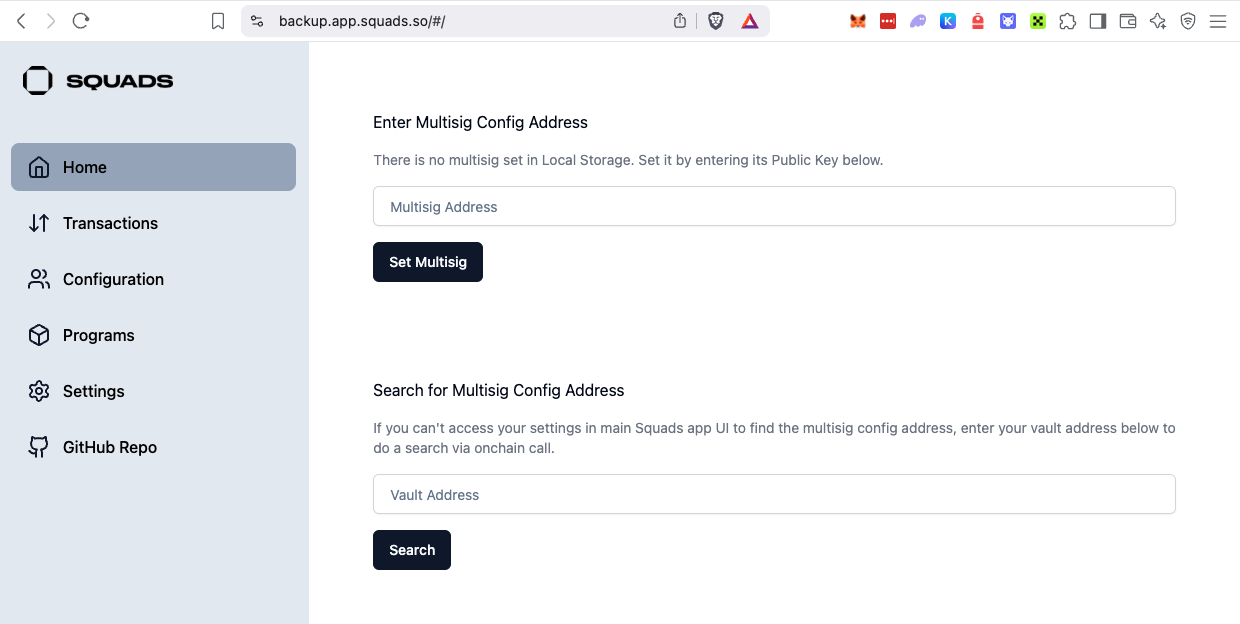
The main Squads UI doesn’t support alt SVMs. Instead use: [Squads Backup App](https://backup.app.squads.so/)
### 1. Configure for the Alt-SVM
**You MUST configure it to work with the alt-SVM!**
Go to **Settings** and use the following settings depending on the chain:
* **RPC URL:** `https://mainnetbeta-rpc.eclipse.xyz`
* **Program ID:**
`eSQDSMLf3qxwHVHeTr9amVAGmZbRLY2rFdSURandt6f`
* **RPC URL:** `https://rpc.mainnet.soo.network/rpc`
* **Program ID:**
`Hz8Zg8JYFshThnKHXSZV9XJFbyYUUKBb5NJUrxDvF8PB`
* **RPC URL:** `https://api.mainnet-alpha.sonic.game/`
* **Program ID:**
`sqdsFBUUwbsuoLUhoWdw343Je6mvn7dGVVRYCa4wtqJ`
* **RPC URL:** `https://api.mainnet-beta.solana.com` *(might need to be a
private RPC URL for better performance)*
* **Program ID:**
`SQDS4ep65T869zMMBKyuUq6aD6EgTu8psMjkvj52pCf`
Note that these configs are saved in your browser’s storage, and while they
may go away in the UI after refreshing, they do persist. 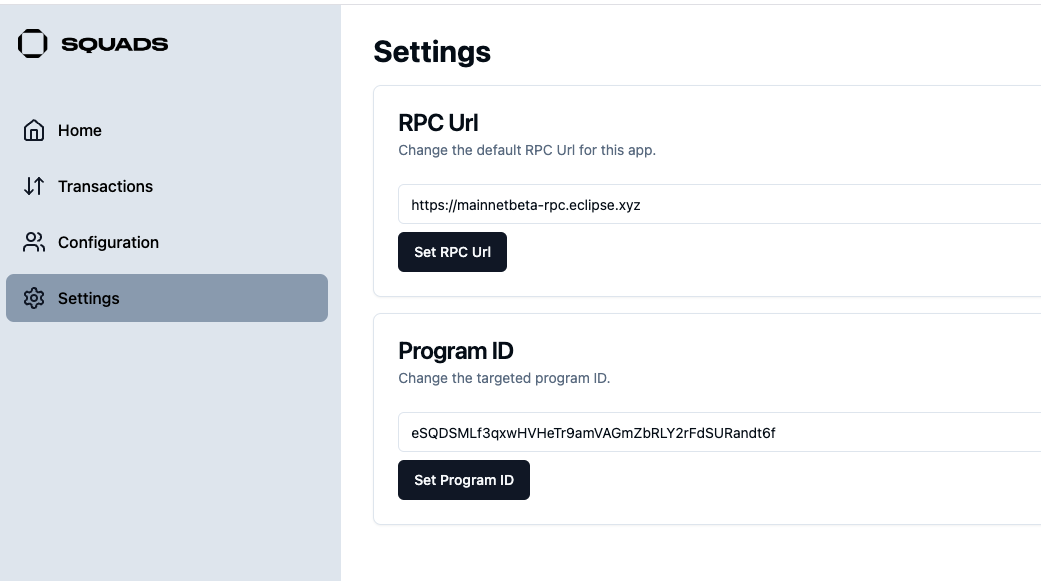 ### 2. Import the Multisig Address
For this step, the **Multisig account** is required. You can either import it
directly or search for it using the **Vault address** (token owner address).
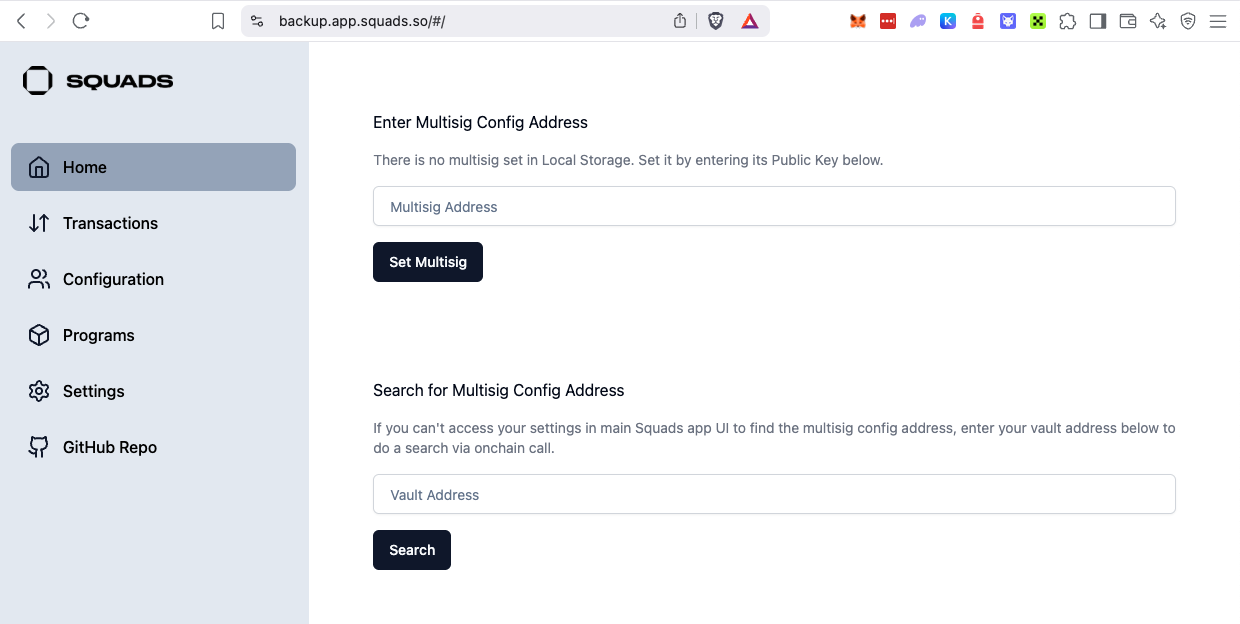
### 2. Import the Multisig Address
For this step, the **Multisig account** is required. You can either import it
directly or search for it using the **Vault address** (token owner address).
 ## Submit Transaction
1. You’ll receive a base58 **message** from the Abacus Works team that is required for executing step 3.
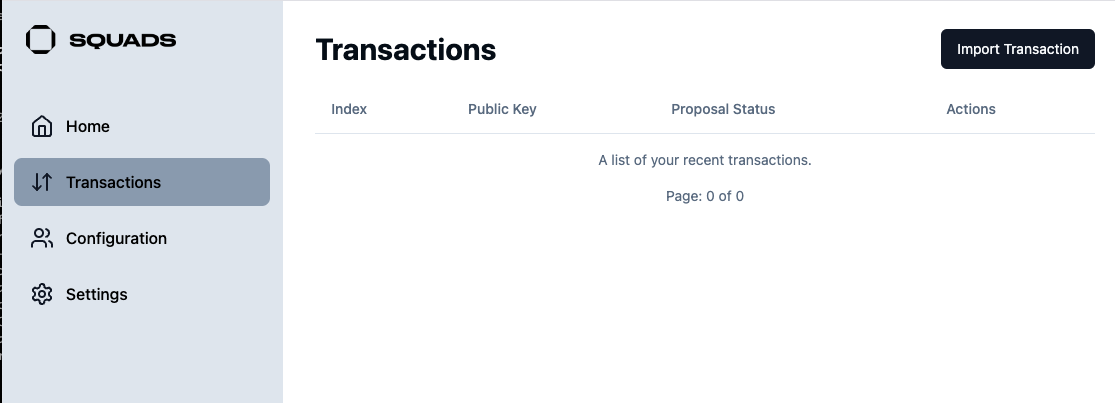
2. Go to the **Transactions** tab, and click **Import Transaction**.
## Submit Transaction
1. You’ll receive a base58 **message** from the Abacus Works team that is required for executing step 3.
2. Go to the **Transactions** tab, and click **Import Transaction**.
 3. Copy the base58 message into the UI and click **Import**.
4. Refresh the page. You should now see the transaction.
3. Copy the base58 message into the UI and click **Import**.
4. Refresh the page. You should now see the transaction.
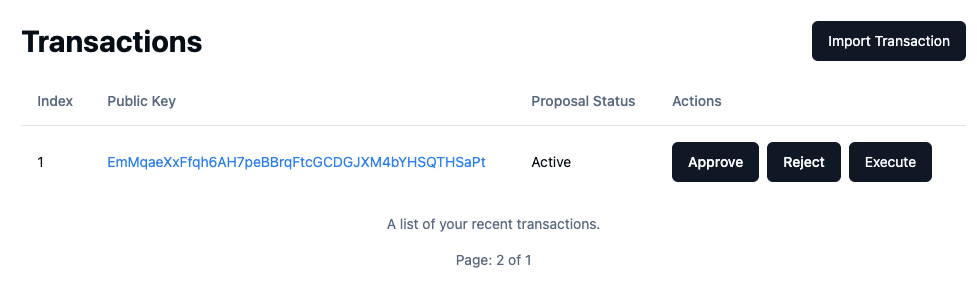 5. Make sure to **keep track of the index/public key of the proposed transactions** and what they do. This way, signers know exactly what they’re signing.